 Paperhanger

Paperhanger
Every wallpaper you love, in one place. Keep your whole collection in a library that syncs to all your Macs, find any picture by describing it, and put it on any display in one click.
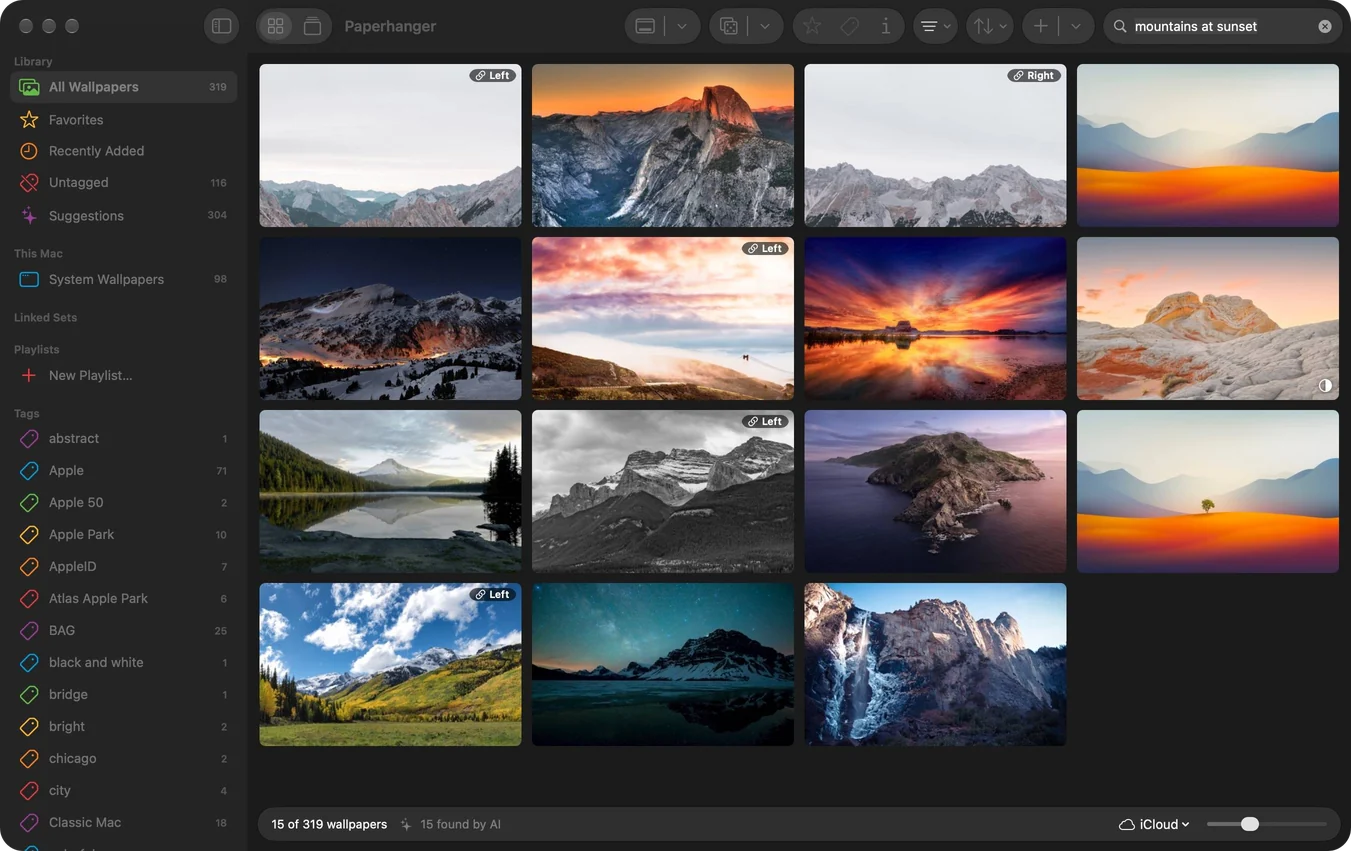
Describe it, and Paperhanger finds it
Type “mountains at sunset” or “dark and minimal” and the matching wallpapers appear, whether you tagged them or not. Tags and file names come first, then everything the AI found.
The search model runs on your Mac. Your pictures and what you type never leave it, and search works offline.
- More Like This
- Suggested tags you approve
- Filter by color, shape or display
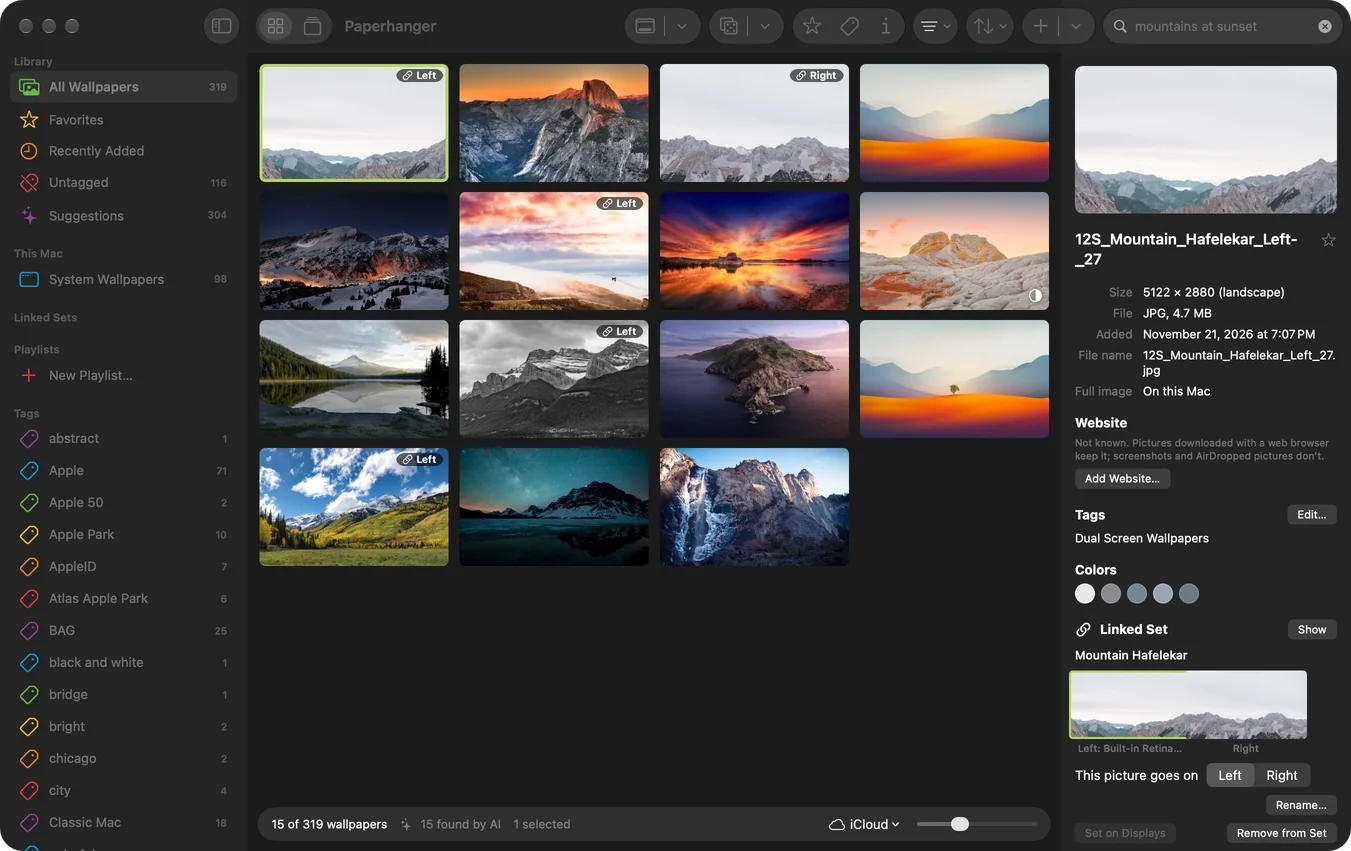
Pairs that span your displays
Link two pictures as a set, and one double-click puts the left one on your left display and the right one on your right. Paperhanger spots likely pairs on its own, from names like “Left” and “Right” or pictures that mirror each other.
Have the same picture in 4K, 5K and 16:10? Group the sizes, and each display gets the one that fits it best.
- Set each display on its own
- Sizes of one picture
- Info panel ⌘I
A big collection, easy to browse
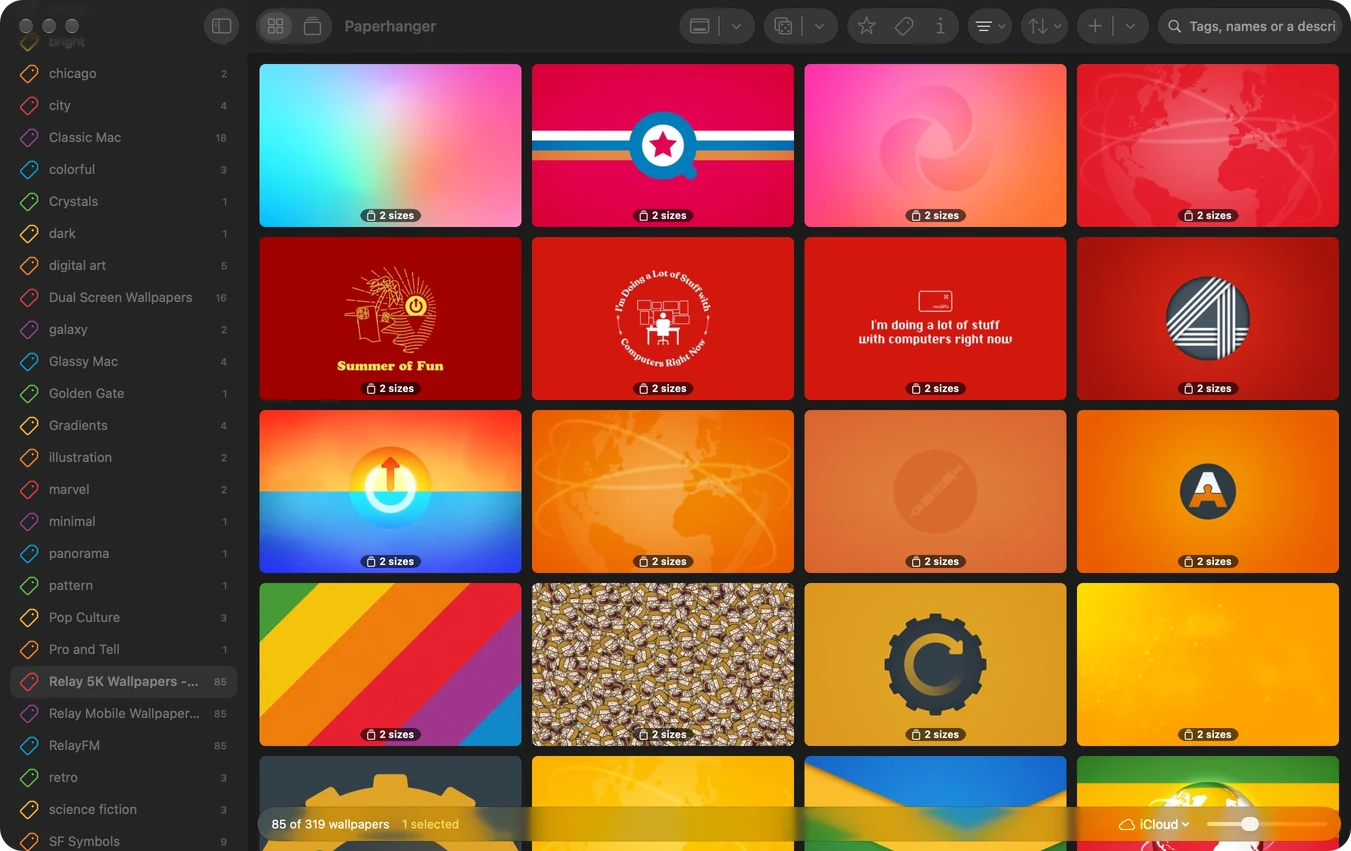
Add a whole folder and its subfolder names become tags, so a wallpaper pack is organized the moment it arrives. Tag many pictures at once, star your favorites, and sort by date, name, resolution, file size, color or shape.
Here, the Relay member wallpapers, sorted by color.
- Folders become tags
- Tag many at once
- Six ways to sort
One library on all your Macs, and nowhere else
Paperhanger keeps your pictures in its own folder in your iCloud, so your tags, favorites, sets and playlists are the same on every Mac you sign in to. There’s no account to make, and nothing about your pictures goes to anyone else.
- Syncs with iCloud
- No accounts
- No ads or tracking
- AI search runs on your Mac
And there’s more
Small touches for people with a lot of wallpapers.
-
Playlists and schedules
Change the wallpaper every few minutes, once a day, or at times you pick. Shuffle without repeats, on every display or just one.
-
Menu bar and hotkey
Pick, shuffle or skip from the menu bar, or press a shortcut anywhere for the quick picker.
⌃⌥⌘W -
Random wallpaper
One click puts a surprise on every display, with no repeats until you’ve seen them all.
⌘R -
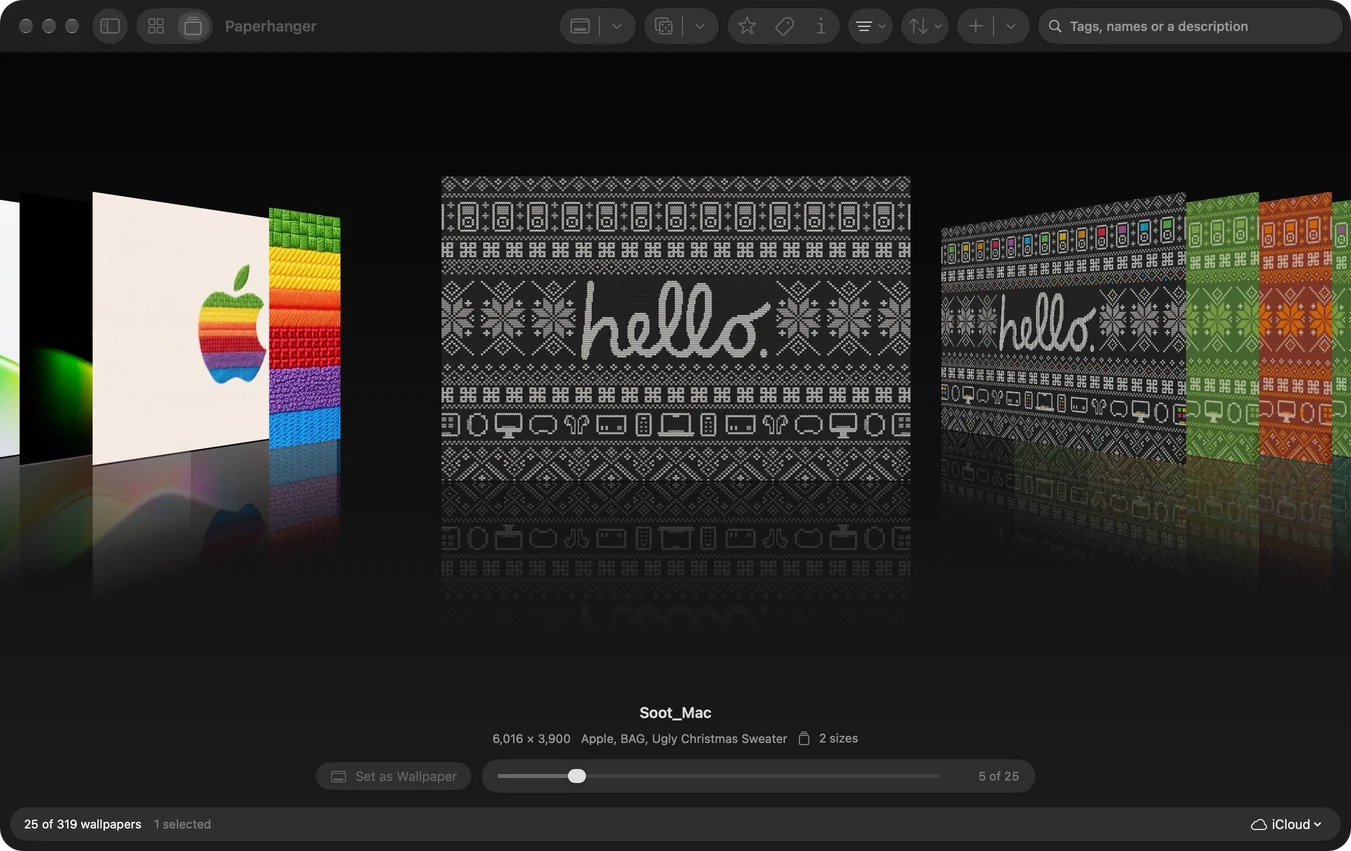
Cover Flow
Flip through your collection with the trackpad or arrow keys, reflections and all. Press Return to set the one in front.
←→↩ -
Where it came from
Pictures saved from a web browser remember the website they came from, so you can always find the artist again.
-
Your Mac’s own wallpapers
The wallpapers that come with macOS sit beside yours. Dynamic ones that change through the day keep working.
-
Quick Look and Undo
See any picture full size with the space bar. Changed your mind? Undo puts back what was on your displays.
Space⌘Z -
Use as App Icon
Put any wallpaper inside Paperhanger’s Dock icon, peeling corner and all.
-
Your own AI key
Add a key for Claude, OpenAI or Gemini and each picture is described once, for even better search.
Optional, and off until you turn it on.
Questions and answers
Which Macs does it work on?
Macs with Apple silicon running macOS 26.6 or later.
Do my wallpapers sync between my Macs?
Yes. Your library lives in Paperhanger’s folder in your iCloud, so your pictures, tags, favorites, linked sets and playlists appear on every Mac signed in to the same Apple Account. The pictures count toward your iCloud storage.
Which wallpaper is on which display is kept separately on each Mac, so your desk at home and your laptop can show different things.
Does AI search send my pictures anywhere?
No. The model behind AI search and tag suggestions runs on your Mac, so your pictures and searches stay on your Mac and in your iCloud. It also works with no internet connection.
What changes if I add my own AI key?
This is optional and stays off until you turn it on in Settings. When it’s on, a small copy of each picture is sent once to the service you chose (Claude, OpenAI or Gemini), which describes it in words. Those descriptions make search even better.
Your searches still run on your Mac, and your key is kept in your Mac’s Keychain.
Can it change my wallpaper on a schedule?
Yes. Make a playlist by hand, from tags or from your favorites, then choose how often it changes or at which times of day. Playlists run while Paperhanger is open, and having it in the menu bar is enough. Turn on Open at Login and it takes care of itself.
Does it work with more than one display?
Yes. Set each display on its own, fill every display at once, or link pictures into a set that spans them, left to right as your displays are arranged in System Settings.
Will it change the wallpaper on all my Spaces?
macOS only lets apps change the wallpaper of the Space you’re on. If you use several Spaces, turn on Keep on Every Space in Settings, and Paperhanger puts your choice back each time you switch, with a brief flash.
Can I use the wallpapers that came with my Mac?
Yes. They appear under System Wallpapers and set just like your own, including dynamic ones that change through the day. A few that macOS downloads on demand can only be set in System Settings, so Paperhanger shows them dimmed and takes you there.
Is there an iPhone or iPad version?
Not yet. Paperhanger is for the Mac.
Still wondering about something? Email kyle.mark@mac.com.